


“Who can take on an urgent task for our newest client this afternoon? It should take two hours.” It’d be great if you could copy and paste that into an LLM right now and get the answer, based on your real Resource Guru data, right? Well, have we got good news for you.
Our new MCP server gives AI assistants a secure, read-only view of your Resource Guru account, so you can quickly explore schedules, availability, utilization, project budgets, time off, and more using natural-language prompts.
That means less digging through data, fewer spreadsheet detours, and faster answers to everyday resourcing questions.
In this article 📖
TL;DR
With the new Resource Guru MCP server, you can connect your account data to your preferred AI tool and ask it just about anything.
Read on for an explainer, set up instructions, and suggested use cases.
If you’re already using Resource Guru, just go to Settings → Integrations → MCP Server to get started.
What is an MCP server?
“MCP” stands for “Model Context Protocol.” In essence, an MCP is a connector that lets an AI tool work with another system. For example, you can use it to connect ChatGPT to Resource Guru so you can ask it questions about what’s in your Resource Guru account. Same goes for pretty much any AI assistant you prefer.
To protect your account data, the Resource Guru MCP server is read-only. Think of it like a window into your Resource Guru account, not a control panel. The AI assistant can see all the data it needs to give you answers, but it can’t go in and edit any of that data.
Once you’re set up, you unlock a shortcut to any insight you could want about your Resource Guru account data. Here are just a few things you can explore:
Pinpoint anything you need in the schedule
The Schedule’s designed to be scannable as-is. Between color coding, filters, heatmap views, and keyboard shortcuts, you can usually find what you need in seconds.
However, when you want to look at larger time frames that go beyond zoom levels, or find multiple items in one action, using Schedule info in combination with AI can get you those answers even faster. This is particularly useful in fast-paced environments like busy agencies and software teams.
Example prompt:
“Point me to anyone whose schedule next week includes tentative bookings. I’d like to either confirm or delete them. No need to share any specifics about the bookings, just send me a list of names.”


The #1 scheduling tool trusted by thousands of project teams
Join thousands of project managers who have made scheduling a breeze.
Uncover insights from your reports
Our out-of-the-box reports already summarize key data for you, including project spend and projects, and capacity and utilization.
But, what if you want to explain the analysis you’re trying to execute just by dictating to your LLM?
Or maybe you want to visualize the data in a unique way, without starting a spreadsheet from scratch. If you want a bar chart showing bookings by Activity Types or a trend graph for time off, both of those—and much more—are just a prompt away.
Example prompt:
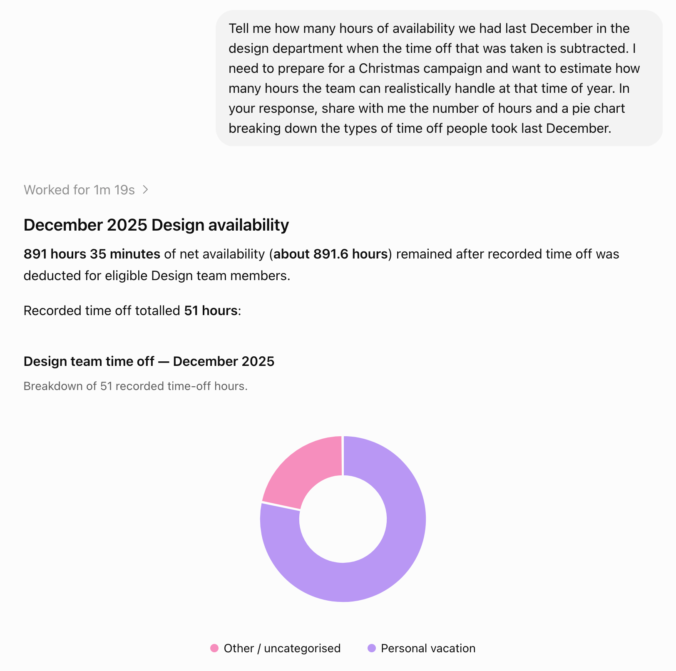
“Tell me how many hours of availability we had last December in the design department when the time off that was taken is subtracted. I need to prepare for a Christmas campaign and want to estimate how many hours the team can realistically handle at that time of year. In your response, share with me the number of hours and a pie chart breaking down the types of time off people took last December.”
Investigate project overspend
Of course, Resource Guru comes with built-in ways to analyze project health like the individual project report, but using AI to query your projects can speed things up.
You can run prompts that include questions like “Which active projects are at risk of going over budget in the next 2 months?” to get a sense of overall portfolio health.
Or, you can go deep on specific projects. You can even take a retrospective look at past projects to optimize for future ones. This approach is especially helpful if you’re running multiple concurrent projects with a lot of moving parts in industries like construction or IT.
Example prompt:
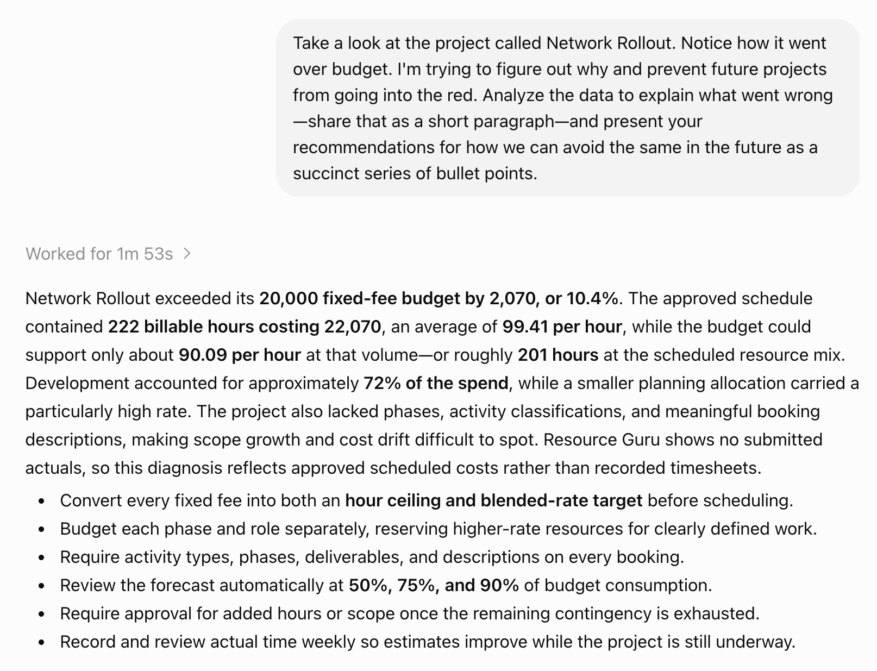
“Take a look at the project called Network Rollout. Notice how it went over budget. I’m trying to figure out why and prevent future projects from going into the red. Analyze the data to explain what went wrong—share that as a short paragraph—and present your recommendations for how we can avoid the same in the future as a succinct series of bullet points.”
Forecast future team capacity
If you’re in the lucky position where your team has space to take on more work, you can use AI to find who’s got free time.
Think about questions like, “How much unfulfilled demand do our designers have next month?” or “Which consultants have more than 20 available hours in the next four weeks?”
By identifying gaps like this, you can assess how much more work you can pitch for, or who can take the burden off other teams, if they have the right skillsets.
Example prompt:
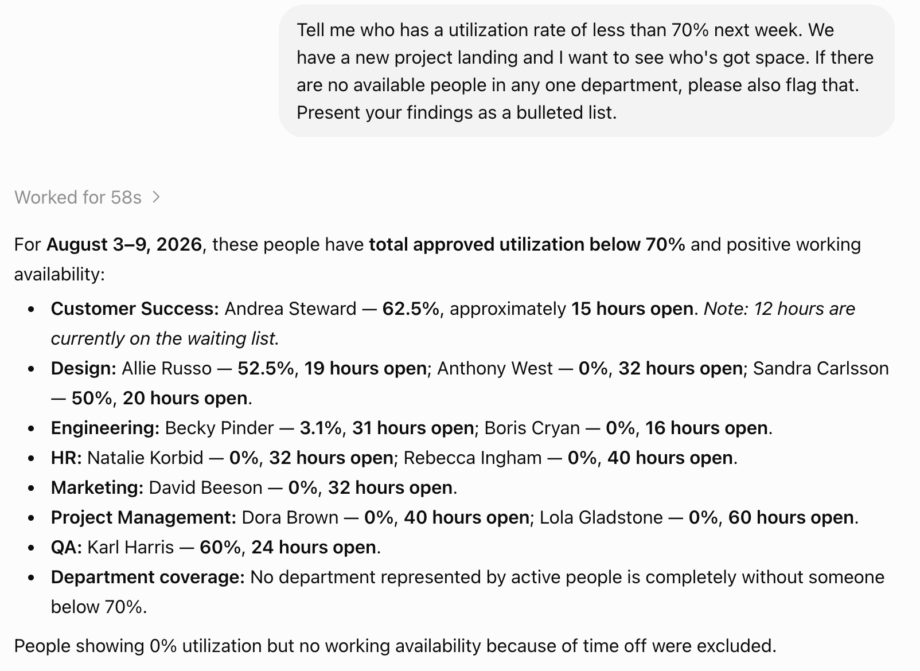
“Tell me who has a utilization rate of less than 70% next week. We have a new project landing and I want to see who’s got space. If there are no available people in any one department, please also flag that. Present your findings as a bulleted list.”
How to set up the Resource Guru MCP server
Set up differs a little depending on which AI tool you want to connect with, but it’s usually straightforward.
MCP server connection basics
Generally speaking, here’s how you can go about setting up the MCP server in an AI tool.
- Open your tool’s MCP, connectors, or plugin settings
- Add a new remote MCP server
- Enter the Resource Guru endpoint URL
- Complete the Resource Guru OAuth sign-in flow
- Start using Resource Guru data from your AI tool
→ Get instructions for more tools in our Help Center
Resource Guru MCP server best practices
- Use reasoning/thinking/high intelligence models. When you do, it means you’re working with the smartest possible version of the LLM, and likely to get better quality results.
- If you’ve got multiple Resource Guru accounts, always specify which account you want to query when you’re prompting your AI tool. That way, you know it’ll check the relevant data.
- Be as specific as possible. Good results come from good prompts. One method to make your prompt detailed enough to get a useful answer is a variation on the academic formula. For that, you’ll want to include:
- Task (the action you want the AI to take)
- Context (background info)
- Constraints (rules) and
- Output format
Try this example out:
“Look at all the people that have booked time on the Schedule over the next four weeks. I want to know who has the appropriate skills to take on a new web design project, and capacity to spend at least 5 hours a week on it. Don’t list any placeholder resources or equipment. Present the list as bullet points that include the person’s name, job title, and current expected utilization rate — based on existing bookings — over the next two weeks.”
- Fine-tune your results. LLMs and other AI tools can get things wrong. Here are a few things to try to ensure you get quality answers:
- Try to simplify. Sometimes you might have a big ask—like the one above—that covers multiple data points. If that’s the case, and if you get an answer that’s not what you expected, try breaking the prompt down into sections and running mini-prompts that can compound to get you your answer.
- Test the logic. If the LLM you’re using doesn’t share its reasoning as standard, try asking it to so you can make sure it’s querying the right data.
- Switch to a different model. AI comes at you fast. Models are constantly improving, so the one that you’re using at any given time may not be the best one available.
- Prompt your tool to give you a better prompt. This is a little meta, but no one knows an AI tool better than itself. If you’re not getting the answers you want, try asking an LLM how you can improve your input.
- Verify important information. As we mentioned, LLMs can make mistakes. Make sure to double-check important findings.
- Check out the Help Center. If you’re struggling to get started, our Help Center article on the MCP server has tips and instructions you can reference.
FAQs about the Resource Guru MCP server
Is the MCP server safe?
The Resource Guru MCP server is read-only, meaning it can only analyze data from your account. Because of this, it does not allow AI tools to take actions in your account or edit any data. That way your account stays secure, but you can still access all the insights your assistant can provide.
Visit our security page to learn more about how we protect your data.
On which Resource Guru plans is the MCP server available?
The MCP server is available on all Resource Guru plans.
How can I set up/check/troublesoot the MCP connection?
Visit our Help Center for detailed instructions about how to connect, authenticate, and disable the MCP server. There, you’ll also find guides for connecting the MCP server to specific AI tools. If you’re already using Resource Guru, go to Settings → Integrations → MCP Server to get started and follow the steps on-screen.
Who can access the MCP server once it’s connected to my account?
You’ll need to be an Admin to enable the MCP server, but anyone in your account can connect it to their preferred AI tool once it’s enabled.
What AI tools can I use with Resource Guru?
You can connect Resource Guru to any tool that supports remote MCP servers.
For example:
- ChatGPT
- Claude
- GitHub Copilot
- Cursor
- Codex
- Windsurf
The fastest way to see what Resource Guru’s MCP server can do is to try it with your own data.
Start a free trial today and see how quickly you can turn Resource Guru into a smarter, AI-powered shortcut for managing your team’s time.
The #1 scheduling tool trusted by thousands of project teams
Join thousands of project managers who have made scheduling a breeze.