

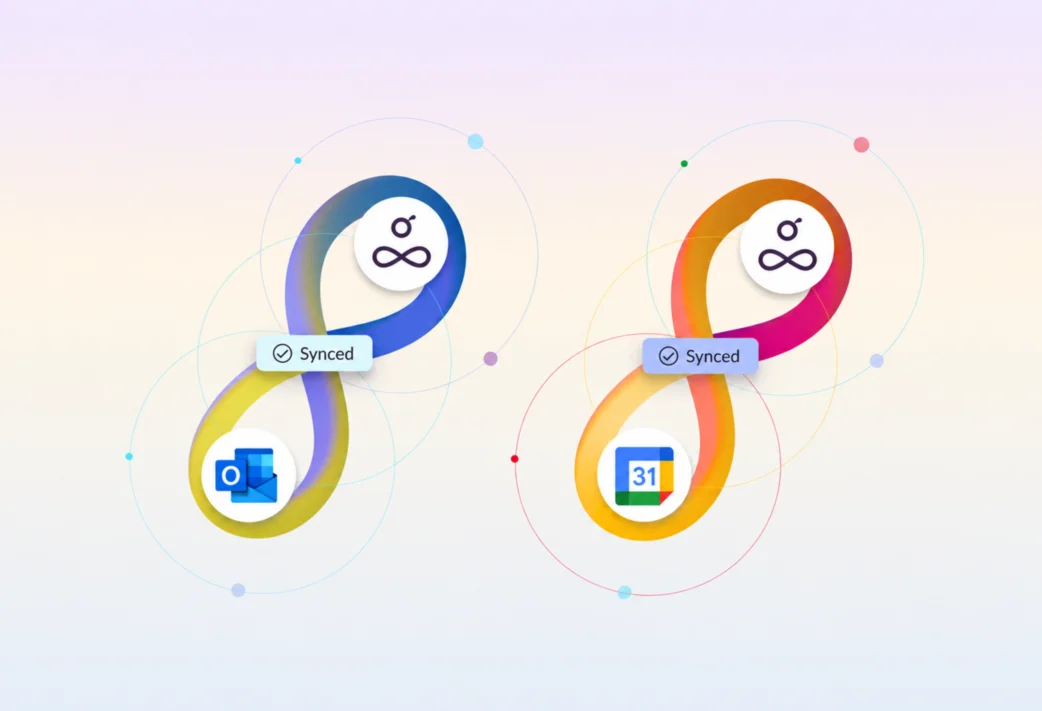
If you’ve been using Resource Guru for a while, you might already have experience with our Google Calendar and Outlook Calendar integrations. They let you sync both ways between Resource Guru and external calendars, but we’ve recently the experience even smoother.
In this article 📖
Get started with calendar sync
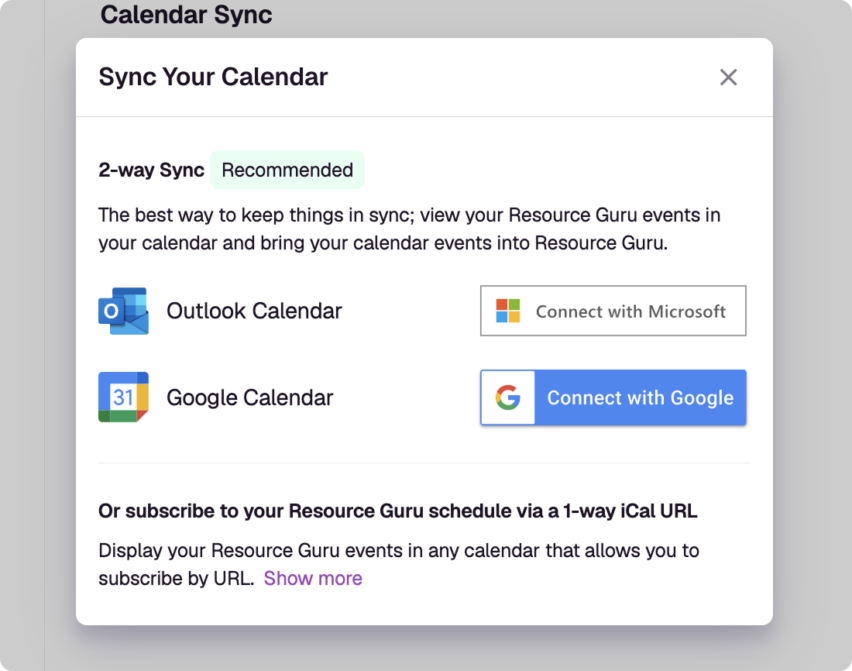
Before we dive into what’s new, a quick note on how to get set up. Just go to Settings → Calendar Sync in your Resource Guru account to start.
Not using Resource Guru yet? Try it for free to explore all our features, including calendar sync.
Once you’re in the calendar sync settings, just follow the steps on screen to sign in and approve the connection.
With that, you’re connected. It’s genuinely that simple.
For more details, visit our Help Center:
Next, let’s see how you can get granular with how the connection handles external events and Resource Guru bookings.
Choose where your bookings sync from (External calendar → Resource Guru)
You can then choose which calendar(s) in your Google or Outlook account you want to sync from to pull events into Resource Guru.
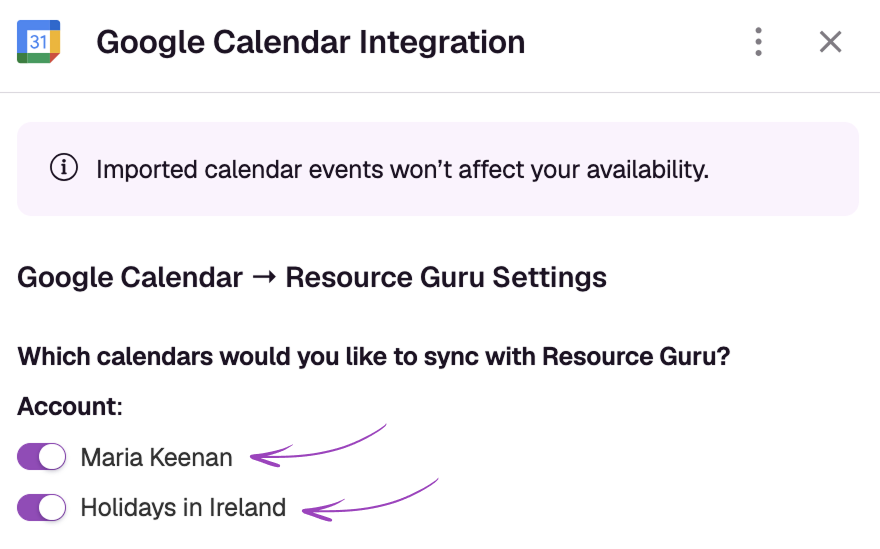
Just want to sync your personal events? Just choose that calendar. Want to sync your whole team’s? Go right ahead.
This choice gives you focus where you need it and complete visibility when you want it.
Choose where your bookings sync to (Resource Guru → external calendar)
You also get the choice between syncing events to your main calendar or to a specified, separate calendar. You get the same choice whether you’re using Google Calendar or Outlook Calendar.
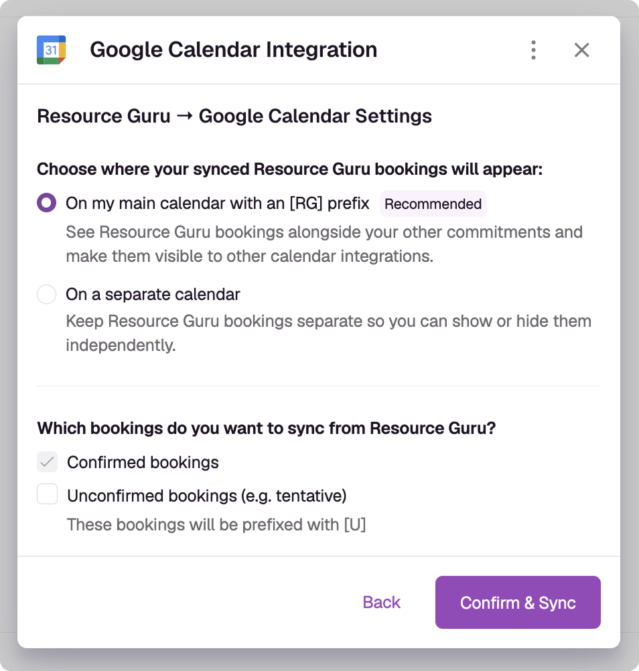
Benefits of syncing to your main calendar
If you choose the main calendar, your Resource Guru bookings will show up alongside all your Google Calendar events. Here’s how that helps:
- Integrated availability: Resource Guru events are visible to scheduling tools like “Find a Time” in Google. This helps cut out calendar conflicts
- A unified view: See all your commitments in one place
- Additional integration opportunities: Some external tools can only be integrated with the main/primary calendar offered by Outlook and Google.
Benefits of syncing to a separate calendar
If you choose a separate calendar, you can toggle it on and off to just see Resource Guru events. Here’s how that helps:
- A clear calendar: Reduce clutter by only seeing events sent from Resource Guru
- Streamlined management: Focus on only one calendar at a time to make focused adjustments
- Isolated edits: Since this view only shows Resource Guru events—and edits within Google Calendar & Outlook Calendar don’t update Resource Guru bookings—you can make concentrated edits on your main calendar, without accidentally touching Resource Guru events
Whichever benefits are more important to you, you’ve got options
Note
If you’ve not already selected either the main calendar connection, or a dedicated calendar connection, but have already set up a calendar sync, you’ll have to disconnect and reconnect your external calendar(s) to make that choice. It’s an infrastructure thing.
If you disconnect your external calendar from Resource Guru, historical and future events will be removed, but will auto-sync once the connection is re-established.
Connect other essential tools
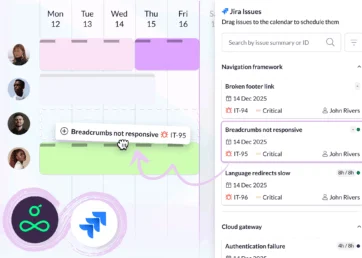
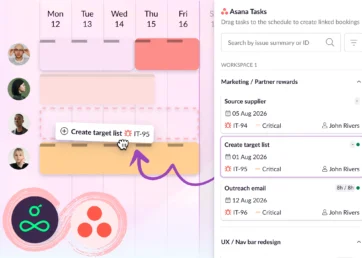
As well as syncing calendars, you can also connect to task management tools like Jira and Asana via native integrations, or just about any other part of your stack via our integrations and API. Explore the integrations catalog to see how you can smooth out your workflows.
All of our integrations, including calendar sync, are available to test out as part of a free trail of Resource Guru. Claim yours here:
The #1 scheduling tool trusted by thousands of project teams
Join thousands of project managers who have made scheduling a breeze.