

Some work you can schedule to the hour, but most work needs you to be more flexible. You might know a project needs 30 hours of design time this month without knowing it needs exactly four hours every Tuesday.
So, you invent a daily pattern anyway: four hours a day for 10 days, and then you maintain it. Every sick day, reprioritized request, and internal meeting then means moving those hours by hand. And, the bigger the team, the more of your week that takes.
Total Hours bookings remove that maintenance job. You book a total number of hours across a date range, Resource Guru fits them into the available time inside it, and then keeps adjusting as new bookings are added.
In this article 📖
What is a total hours booking?
Here’s what makes up a Total Hours booking:
- A total number of hours and a date range, not hours per day: 20 hours of design work this week, or 200 hours on a project over three months
- Flexible time distributed across the range based on what’s actually available
- Flexibility options that set how far those hours can move as new bookings are added
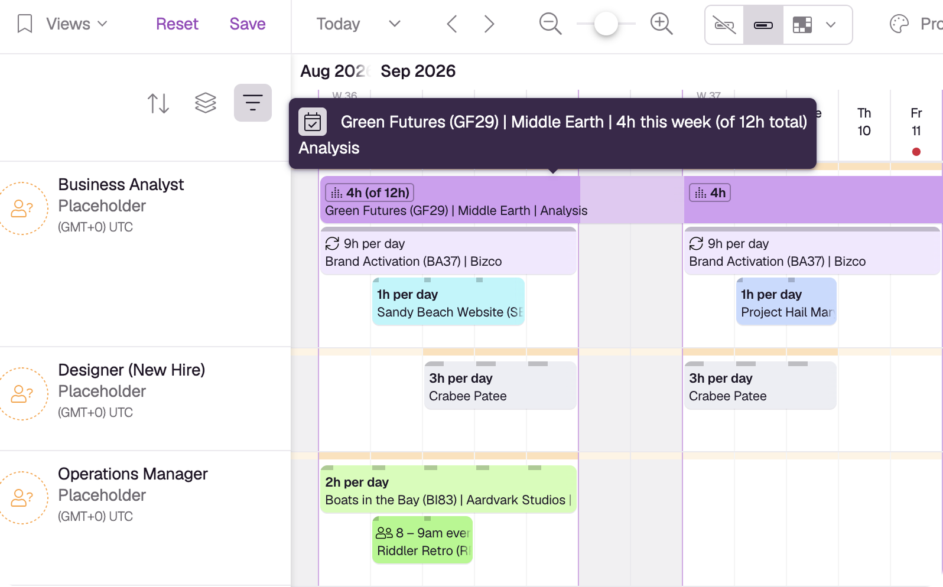
- Weekly allocation labels on the Schedule, showing the current spread and the total requested effort
Bookings that stay flexible, even when new work lands
Most scheduling tools let you book a total number of hours, then lock those hours to specific days. Here’s how Total Hours bookings handle changes more smoothly, even at the last minute.
Think in total hours, not hours per day
Sometimes hours per day is exactly the plan. If a client has booked your team for four hours a day across two weeks, that’s a real daily commitment.
Plenty of work isn’t like that. You know it needs 40 hours before the end of the month, and the daily split is something you invent to get it onto the Schedule.
Most scheduling tools make you invent it too: entering “40 hours over two weeks” often gets divided into a per-day quota, four hours a day, spread evenly across the workdays, regardless of what’s already booked.
Even if you switch to a dedicated scheduling tool, it won’t always fix that. Entering “40 hours over two weeks” often gets divided into a per-day quota: four hours a day, divided evenly across the workdays in the range, regardless of whatever else is already booked.
That split is arithmetic, not availability. It doesn’t look at what else is on the calendar, and it can’t respond to what lands later. So four of those hours sit on Wednesday, then an all-day workshop gets booked on the same day, and it’s marked as overbooked, while Thursday sits half empty.
A Total Hours booking distributes the work more freely: 40 hours, sometime in this window, fitted into the time that’s actually free. The total is protected. The daily allocation isn’t set in stone.
When the Schedule changes, the flexible time moves
If you add that workshop from the previous example to a day containing time from a Total Hours booking, Resource Guru will adjust the flexible time inside that booking’s date range, where there’s capacity.
Only the flexible time moves. Other booking types, such as Hours per Day, stay exactly where you put them, and nothing else on the Schedule changes.
The allocation also recalculates when vacation, leave, or reduced availability changes capacity levels. Plus, if you edit a booking that’s already underway, Resource Guru asks whether to recalculate future dates only, or the entire range.
This all combines to avoid days looking overbooked when they’re not in reality.
Decide how much a booking is allowed to move
Flexibility is great but, when the delivery plan’s already been signed off, you need to be realistic about how much the total effort can move around. Each booking gets one of three options:
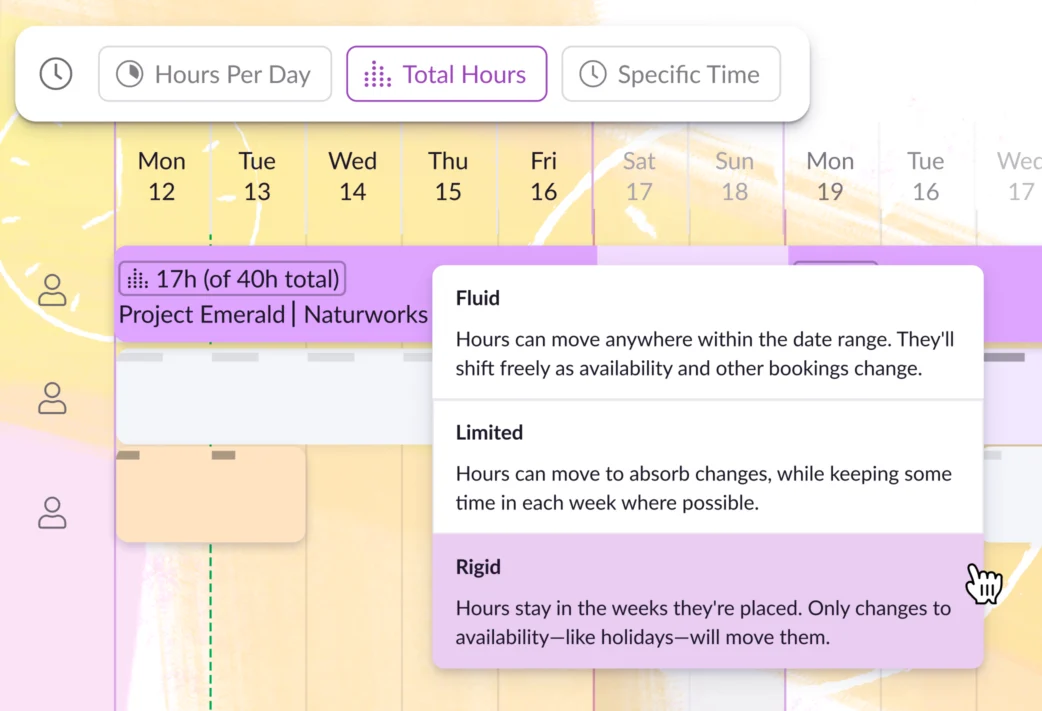
- Rigid: Hours stay in the weeks they started in
- Limited: Hours can move, but stay reasonably spread across the weeks
- Fluid: Hours can move anywhere in the date range
Use Rigid when the weekly plan is a commitment you’ve made to a client. Use Limited when the work needs to progress steadily rather than cluster wherever there happens to be space. Use Fluid when the work only has to be finished by the end date.
Reserve effort before you know who will handle it
Long-range work often firms up in the wrong order. You might know a project needs 200 hours of engineering time next quarter well before you know which engineer can handle it. It can take even longer to know which weeks the work should take place in.
Book it against a placeholder using the Total Hours option, and the commitment will land on the Schedule, in the right window, without inventing the details you’re not sure about yet. Assign a person later and Resource Guru will recalculate around their real availability.
FAQs
How do I create a Total Hours booking?
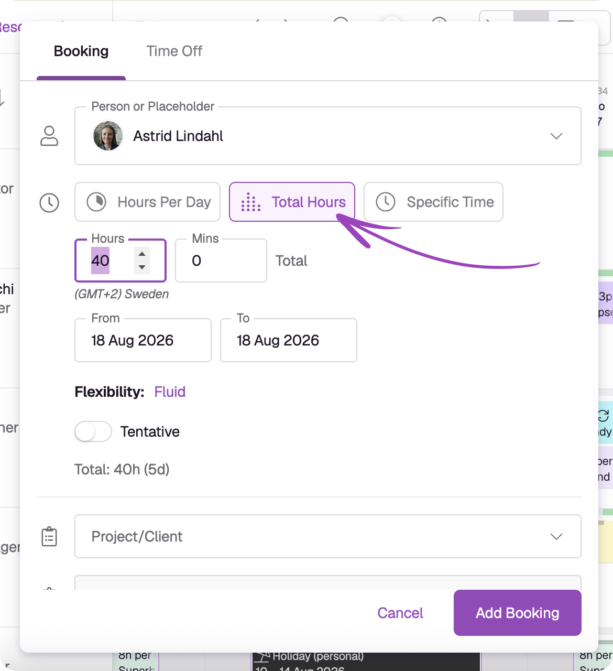
Open the booking modal on the Schedule and choose Total Hours as the booking type. Then enter the total hours, the date range, the project and client, and a flexibility option.
Total Hours bookings currently cover one person or one placeholder at a time.
Get detailed instructions in our Help Center.
What Resource Guru plans include Total Hours bookings?
Total Hours bookings are available on all Resource Guru plans. Visit our pricing page for more details.
Book what’s certain, leave room for what isn’t
Capacity planning gets fragile when the Schedule claims more certainty about upcoming work than the team actually has. Invented daily allocations create clashes that were never real, and hide the ones that are, leading to a week spent reshuffling bookings that were never firm to begin with.
Total Hours bookings let the Schedule match what you know: this much work, in this window, fitted around everything else.
To try Total Hours bookings for your next project, start your free trial today:

The #1 scheduling tool trusted by thousands of project teams
Join thousands of project managers who have made scheduling a breeze.